How to use DSV-Fleet.com. Where the 58 sat DSVs are, what their owners paid and earned, and the weather at each ship this week.
Eight things you can do on it, each with the control shown and the steps in order. It is free, there is no login, and it works on a phone in the departure lounge.
I dived mixed gas in the eighties and I price this market for a living. I built this for the diver waiting for the chopper, the superintendent, the crew coordinator, the charterer, the broker and the owner. JMc2.
Find your ship on the map
Every sat DSV, at her last AIS position, on one chart.
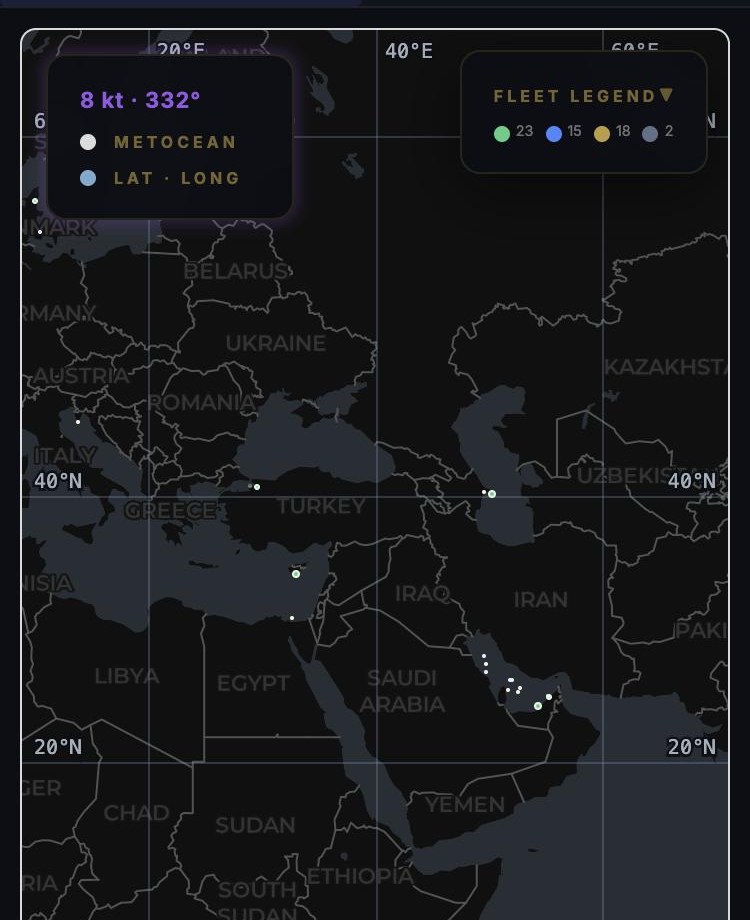
- Open Fleet Map. Pinch to zoom; the chart is one world and will not wrap.
- Tap a dot. Her card opens: owner, field or port, system, crane, deck, score, and when she was last heard.
- At the foot of the card, the brass bar weather at ship opens her instruments. close the instruments shuts them.
- Tap any open water and a bubble prints the wind, sea, swell, current, water and air for that cell, with the model and the hour it is valid for.
Turn layers on and off
Two dots on the Map Layers card control what the chart shows.
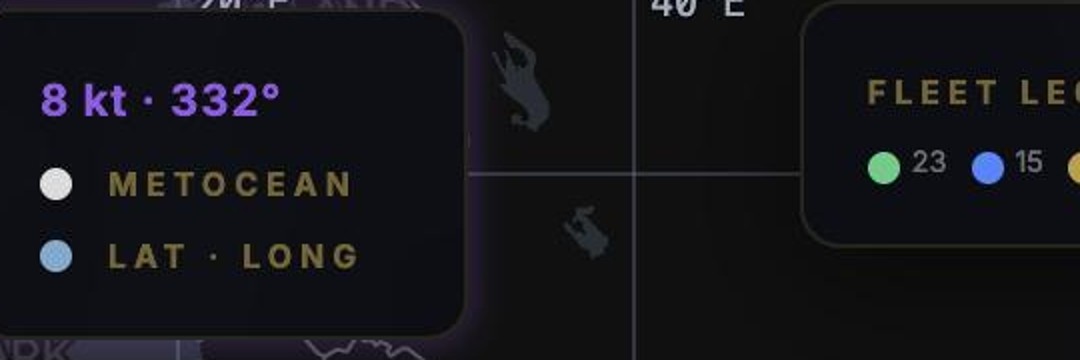
- The purple figure is the wind at the point under your finger, speed and direction it comes from.
- Tap the dot beside METOCEAN to switch the weather layer on or off. On, the wind moves across the water and the sea and water colours draw.
- Tap the dot beside LAT · LONG to switch the grid lines on or off. The chart remembers your choice on this phone.
Read the legend and filter by tier
The colours are the tiers. The legend is also a filter.
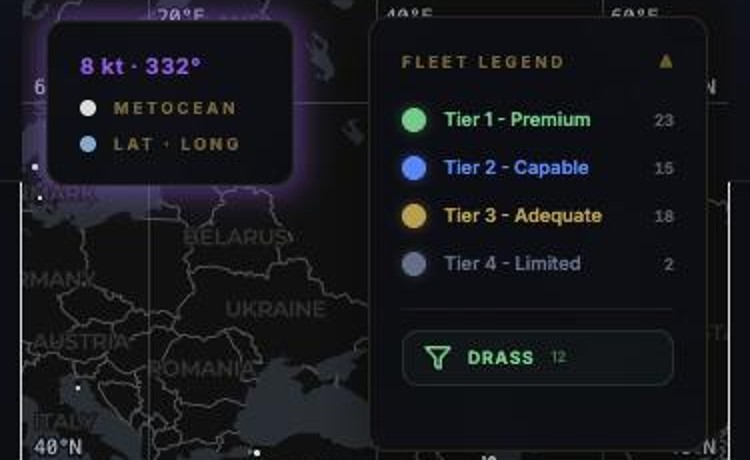
- Tap FLEET LEGEND to open or fold it.
- Green is Tier 1, blue Tier 2, gold Tier 3, grey Tier 4. The number beside each is how many ships sit in it today.
- DRASS shows the twelve ships whose systems came from that maker. Partners with a code open more there.
The week at every ship
72 hours of weather at each vessel, on one board.
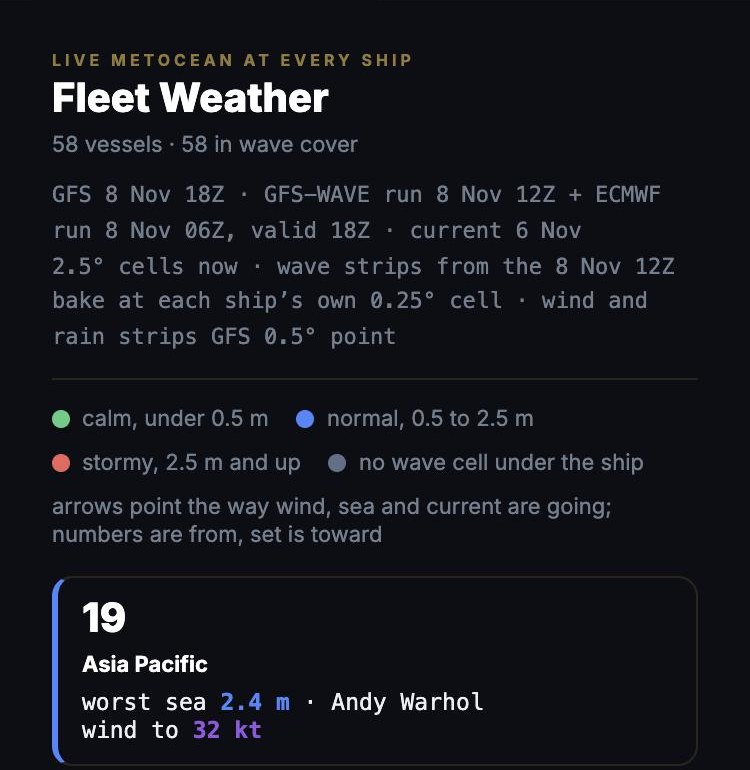
- Open Weather. The first lines name the model run behind every number, and the hour it is valid for.
- The key: green is calm under 0.5 m, blue normal to 2.5 m, red stormy. Grey means no wave cell under the ship.
- Each region card gives the worst sea and strongest wind in that water this week, and the ship it falls on.
- Arrows point the way wind, sea and current are going. Numbers are the direction they come from.
Find your vessel and set your limit
Type her name, set the sea you will not work in, and the board frames every hour past it.
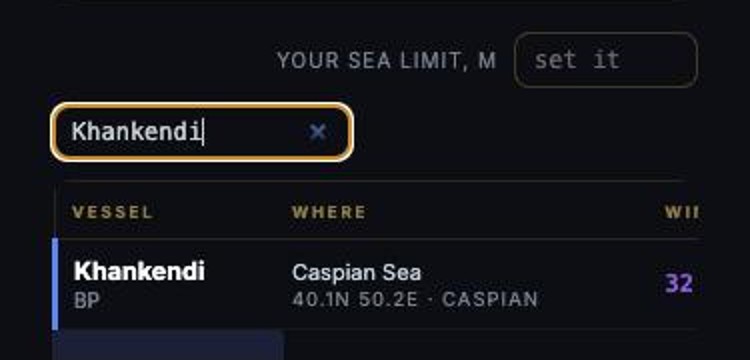
- Type her name, or a place, in vessel or place. The table shrinks to the match.
- Type your working limit in metres in your sea limit, m. It is yours; the board never says a job is on or off.
- Tap her row. Her instruments open: wind, sea, glass, set, water, air, swell and wind sea, with the run stamp.
Her next 72 hours
Three-hourly, every cell a number on a fixed colour scale, nights shaded, your limit framed in red.
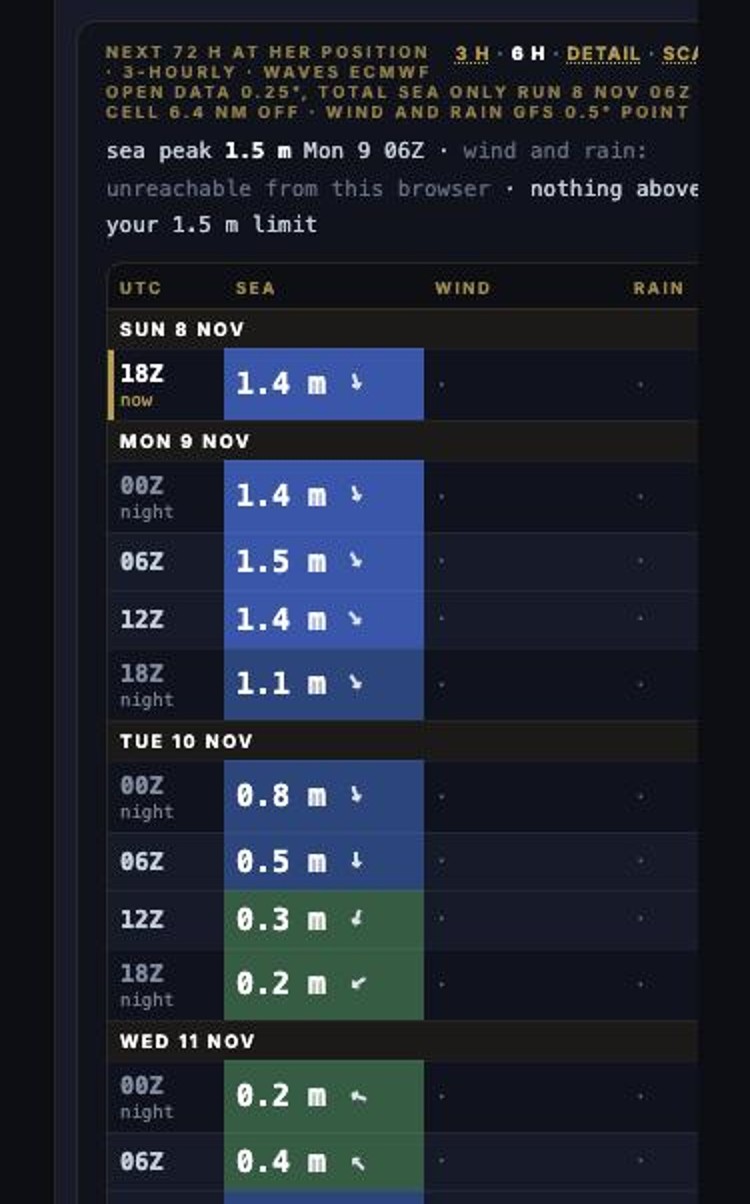
- Under her instruments, the grid. Switch 3 H and 6 H for closer or wider steps.
- On a phone, DETAIL adds period and bearings; SCALE shows the colour key. On a desk, time runs across and everything shows.
- Hours past your limit carry a red frame, and the line above the grid counts them.
- The stamp under the grid names the model, the run and the valid hour. A stale run never poses as live.
Where she has been
Every noon fix since 12 August and every six-hourly fix since 19 October, drawn and played back.
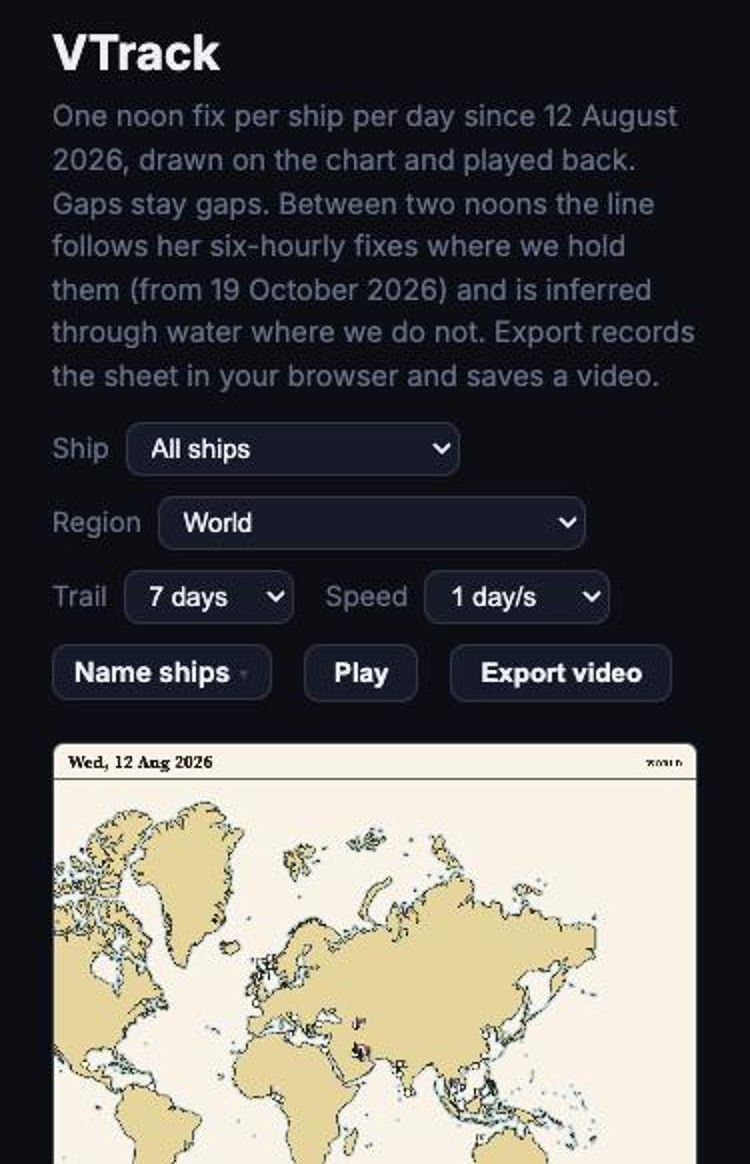
- Open VTrack. Choose a Ship or leave All ships, and a Region.
- Chart sets the look: Dark on screen, with the depth contours and the field outlines named; Paper is the Admiralty sheet. Trail sets how many days of wake she drags; Speed sets days per second.
- Play runs the record from 12 August. Name ships labels the dots. Her stops are named from the NGA World Port Index.
- Export video saves the sheet as a film; it asks for a pass.
The database, the lookup, the count
Find any of the 58 by name, owner or MMSI; filter; compare; read the score.
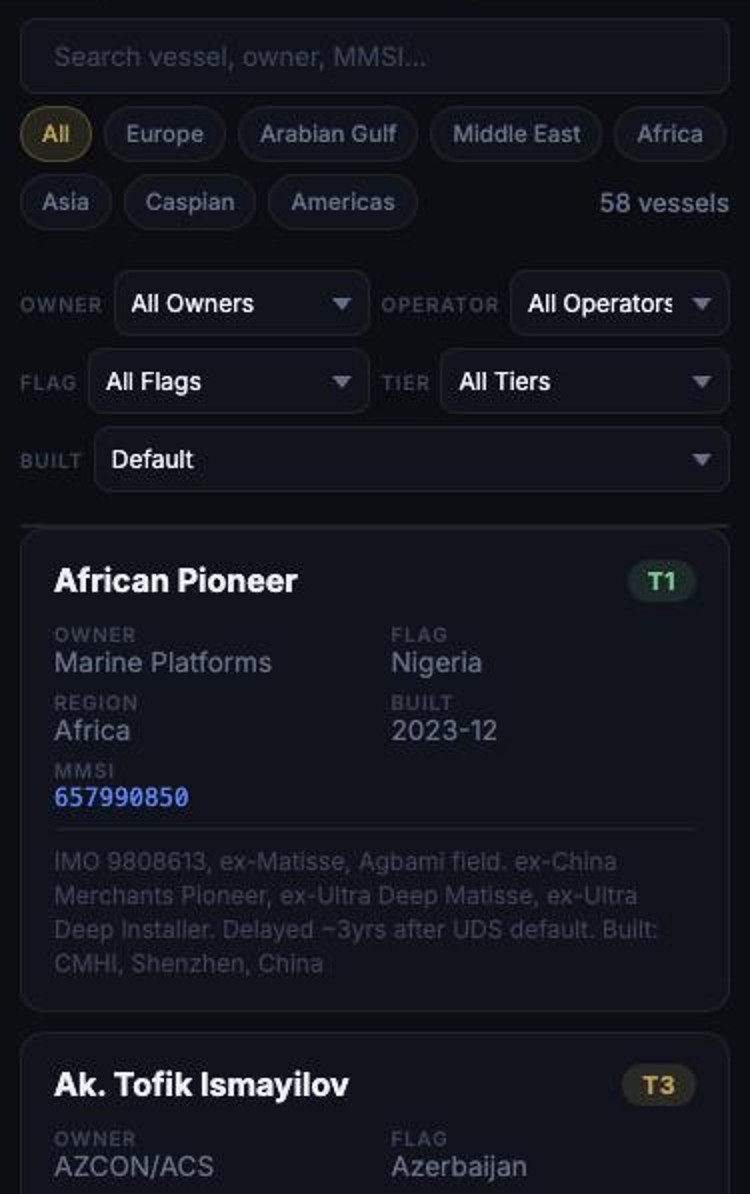
- Fleet Database: type in the search, tap a region chip, or filter by Owner, Operator, Flag, Tier or Built. Compare puts ships side by side.
- Vessel Lookup: type her name under Find a vessel for her specs card, then Show on Fleet Map to jump to her dot.
- Dashboard: the seven-axis score for any ship under Overview, the DP record under DP Delta Intel, and the fleet’s age under Mortality Scanner.
What is behind the pass
The Ledger: 25 owner decisions on these ships, read from the filings by hand, and for 16 completed or agreed purchases what the ship had to earn a day to pay her owner’s own disclosed rate. Ocean Yield’s was 9.79 percent, Boskalis’s 9.1, James Fisher’s between 5.7 and 6.7. Oceaneering’s US$34.9m write-down of a sat DSV is in it, and SBM’s US$150m ship sold on for US$35m eight years later, each with the filing.
If you want the Ledger open for 24 hours, send me a direct message on LinkedIn with the word LEDGER. It costs nothing and there is no form. You get a pass that dies at the hour, and I learn who wants the owners’ arithmetic on the ships they charter, sell or finance.
Disclaimer
All particulars are given in good faith but without guarantee, are believed correct at the time of publication and are subject to change without notice. Positions are AIS broadcasts and may be delayed or wrong. Scores are the author's own assessment. Nothing on this site is for navigation, chartering, safety or operational decisions; verify with the owner or operator. No liability is accepted for any use of this information. Errors and omissions excepted.
Corrections are welcome and are made by updating the site.